 Free on WordPress.org
Tidy Media
Find unused media and see each file marked Safe or Review, with the reason in plain words. Files go to quarantine first and come back with one click. Seven page builders, WooCommerce and custom fields are included, free.
 Tidy Media
Scanner
Quarantine
Settings
Tidy Media
Scanner
Quarantine
Settings
Why Tidy Media
-
Safe or Review, with the reason
Every result says why it was listed. Files that must stay, such as files in use, form uploads, customer files or your Protected media IDs, are not listed at all.
-
Quarantine first
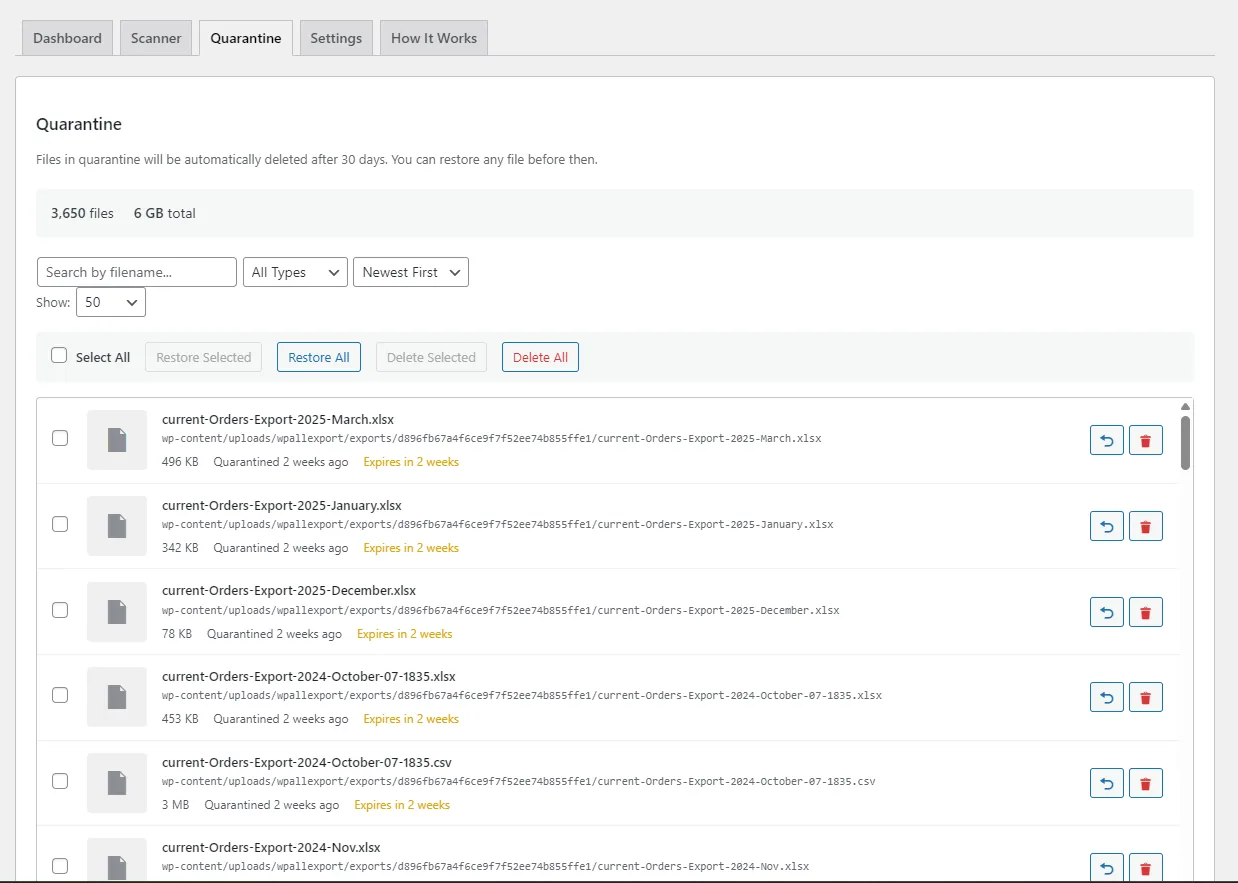
Nothing is deleted straight from the results. Files wait in quarantine for 30 days by default, and one click puts them back with all their thumbnails.
-
Seven page builders, free
Elementor, Divi, Beaver Builder, WPBakery, Bricks, SiteOrigin Page Builder and Brizy, including Elementor 4 and Divi 5 layouts.
-
WooCommerce and custom fields
Product images, galleries, variations, categories and downloads, plus ACF, Meta Box, Pods, JetEngine and Toolset Types fields.
Free and GPL. No Pro version, no account, nothing sent to other servers.
Clean up without guessing
What Tidy Media 1.1.0 does, in the words of its own readme. Every feature is in the free plugin on WordPress.org.
-
Safety classes on every result
Safe means the scan found no reference, so the file can go to quarantine. Review means it might still be used somewhere the scan cannot see, such as emails or other sites, and it needs an extra confirmation.
Media found only in revisions, the trash or drafts is marked Review. Executable files in uploads are listed in an alert and never moved.
-
Used in code and Protected media IDs
When a media ID appears in your theme, your must-use plugins or the plugins you choose, the file is marked “Used in code” and the reason names the file and line.
Add an ID to Protected media IDs in Settings and that file is never offered for quarantine again.
-
Quarantine with history
Files move to a folder with a random name inside
wp-content/uploads/. Retention is 30 days by default; choose 7 days to a year, or Never to delete by hand. Restore one file or a whole batch, and see the quarantine history.A quarantined file that is still requested is never deleted automatically.
-
Check my pages
After a cleanup, Tidy Media fetches your own pages the way a visitor sees them and finds quarantined media they still show, so you can restore it before anyone notices.
“Where is this used?” shows where any single file is linked or shown.
-
Deep scanning
Post content, featured images, page builder data, WooCommerce products, custom fields, widgets, site options, comments, user profiles and terms. Also slider, form, SEO, mailing list, map and code snippet tables, theme files, must-use plugins and the plugins you choose.
-
Scans that fit your server
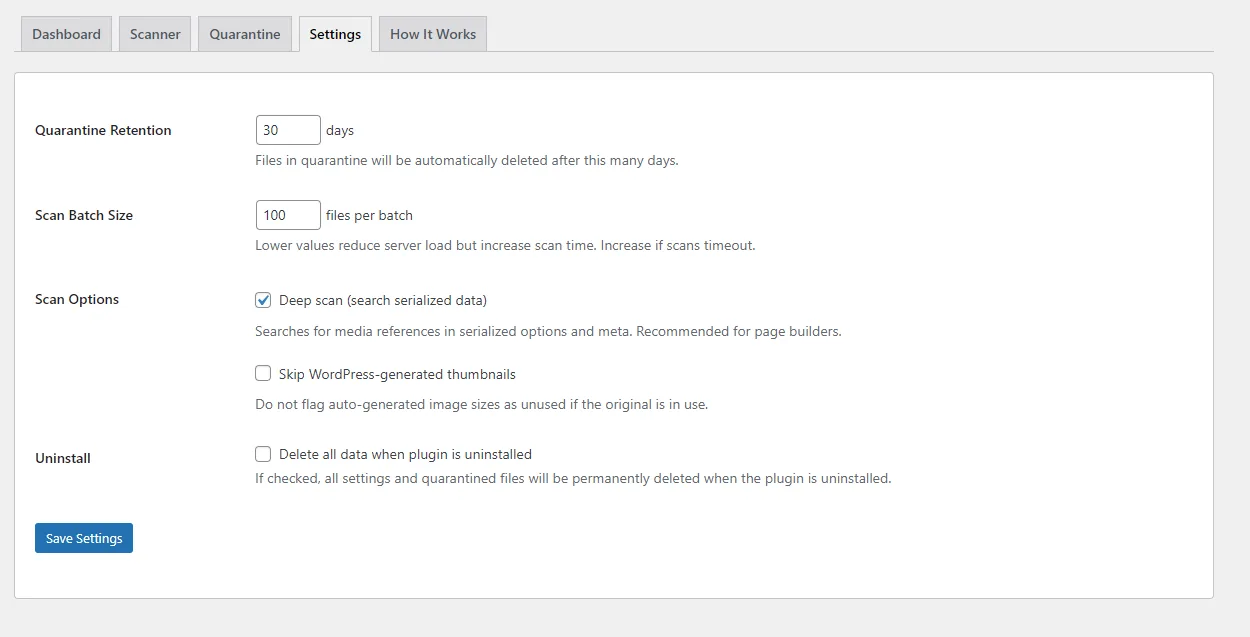
With the default Automatic batch size, batches grow while your server answers quickly and shrink when it is slow, and step down after a crash. Scans run in your browser and can be paused and resumed at any time.
If a scan stops, the message says why, with “Copy error details”.
Also included
- Unregistered files: files in uploads with no Media Library entry, often left by backup or image optimization plugins, tagged with their likely origin
- A panel for files in uploads that may hold private data (exports, logs, backups), with a check whether each can be downloaded from the web
- Dashboard disk use by month and by folder, and a Last scan line with total media files and size per source
- Site Health checks and a quarantine protection test
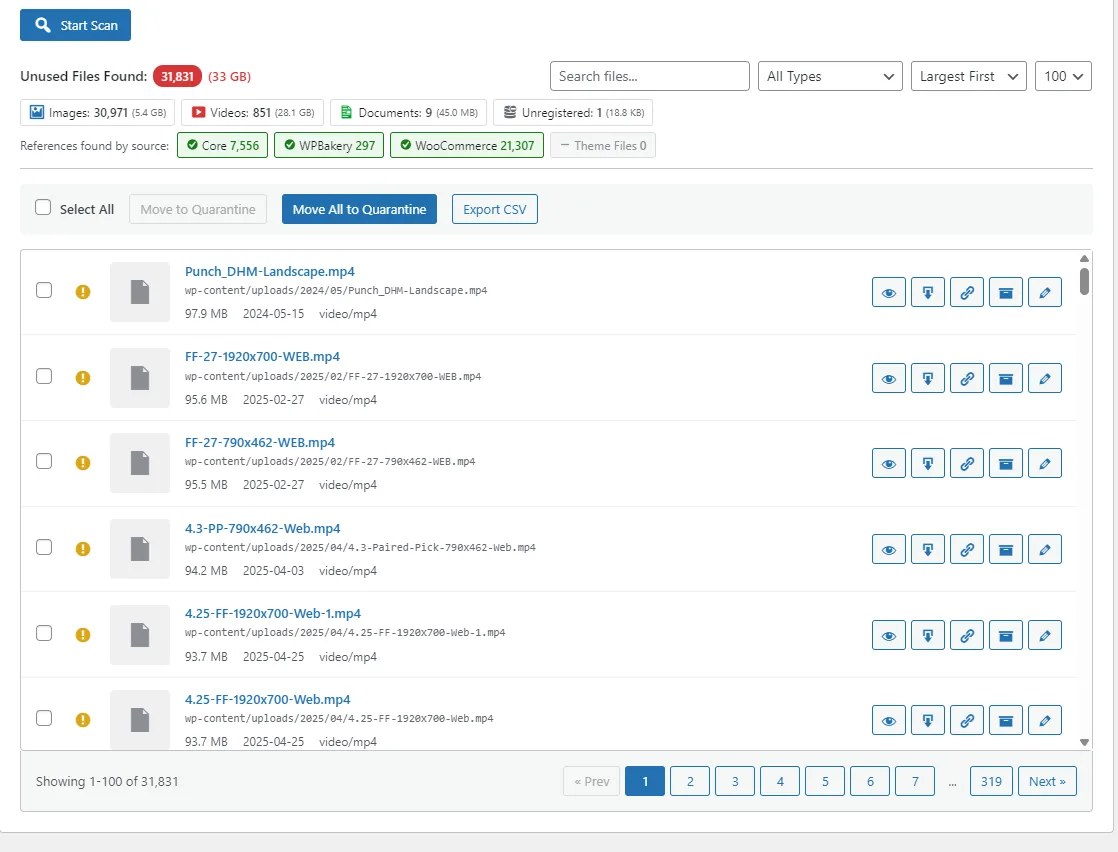
- CSV export with date and time, safety class and reason
- Filter by file type, sort by size or upload date, set a minimum file size, and skip files newer than a number of days you choose
- “Delete library entry” for media items whose file is gone
- A notice that suggests regenerating thumbnails after image sizes or the theme change
- Reset scan, Repair database tables and scan diagnostics
- WooCommerce HPOS and Cart and Checkout Blocks compatibility declared
Screenshots
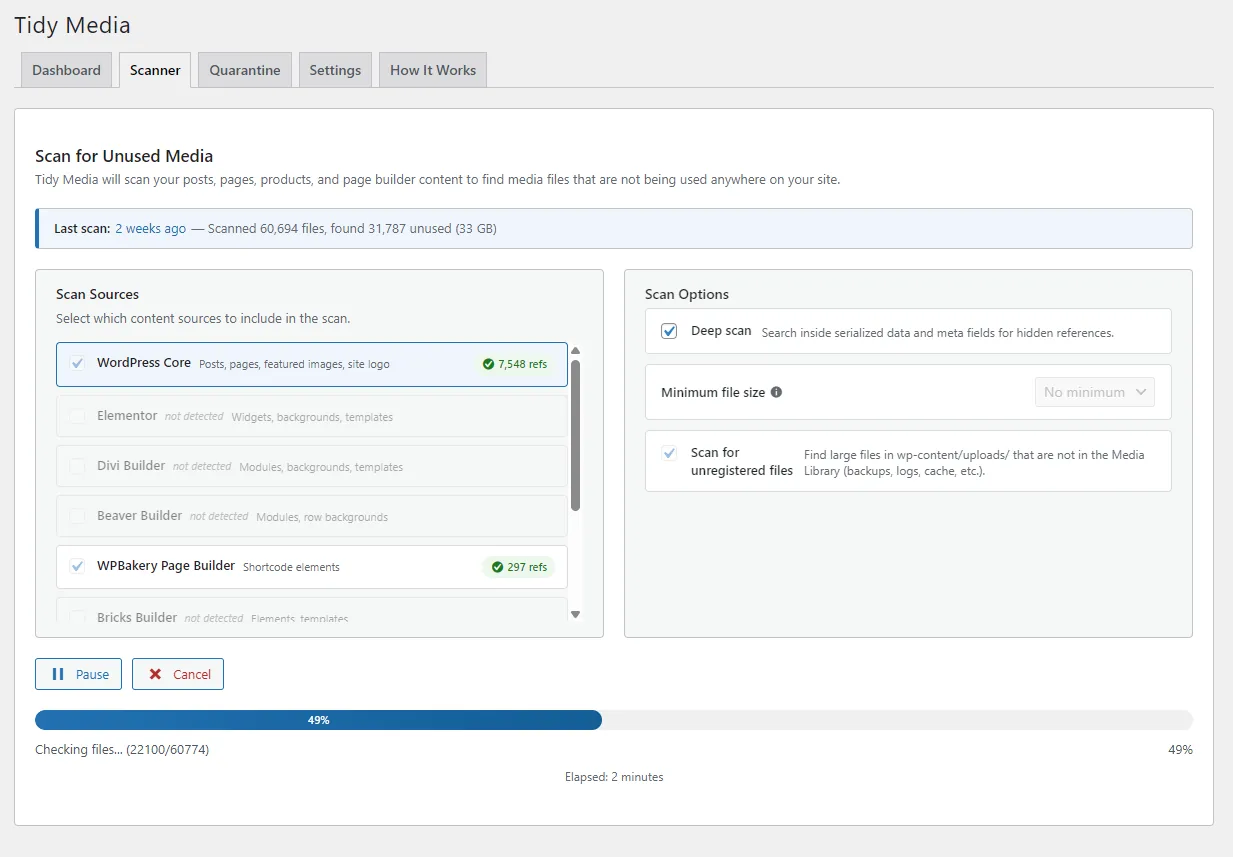
The screenshots published on the plugin’s WordPress.org page, with their captions. They were taken before version 1.1.0, so they do not show the Safe and Review labels or the newer settings.
How the free versions compare
Whether a cleanup plugin can read your page builder, shop and custom fields decides whether it can see your media at all. This is what each free version covers.
| What it reads | Tidy Media | Media Cleaner (free) | Media Hygiene (free) |
|---|---|---|---|
| Elementor and Divi | Free | Pro only | FreeOn pages and posts; templates in Pro |
| Beaver Builder and WPBakery | Free | Pro only | Pro only |
| Brizy | Free | Pro only | Not listed |
| WooCommerce product galleries | Free | Free | Pro only |
| ACF custom fields | Free | Pro only | Pro only |
| Meta Box fields | Free | Pro only | Listed as coming to Pro |
| Files in uploads with no Media Library entry | Free | Pro onlyFilesystem Analysis | Pro onlyFolder Scan |
“Pro only” means the plugin’s WordPress.org listing names it as a Pro feature. Checked on 18 October 2026 against Media Cleaner 7.3.1 on WordPress.org (opens in a new tab) and Media Hygiene 6.1.1 on WordPress.org (opens in a new tab). Plugins change; check the listings for the current state. Both are capable plugins with their own strengths, such as a trash with restore in Media Cleaner’s free version and a whitelist in Media Hygiene’s.
What Tidy Media adds on top
A Safe or Review class with the reason on every result, “Used in code” with the file and line, quarantine history with retention up to Never, and “Check my pages” after a cleanup. All free, no Pro version.
Frequently asked questions
Answers taken from the plugin’s readme, version 1.1.0.
How it works
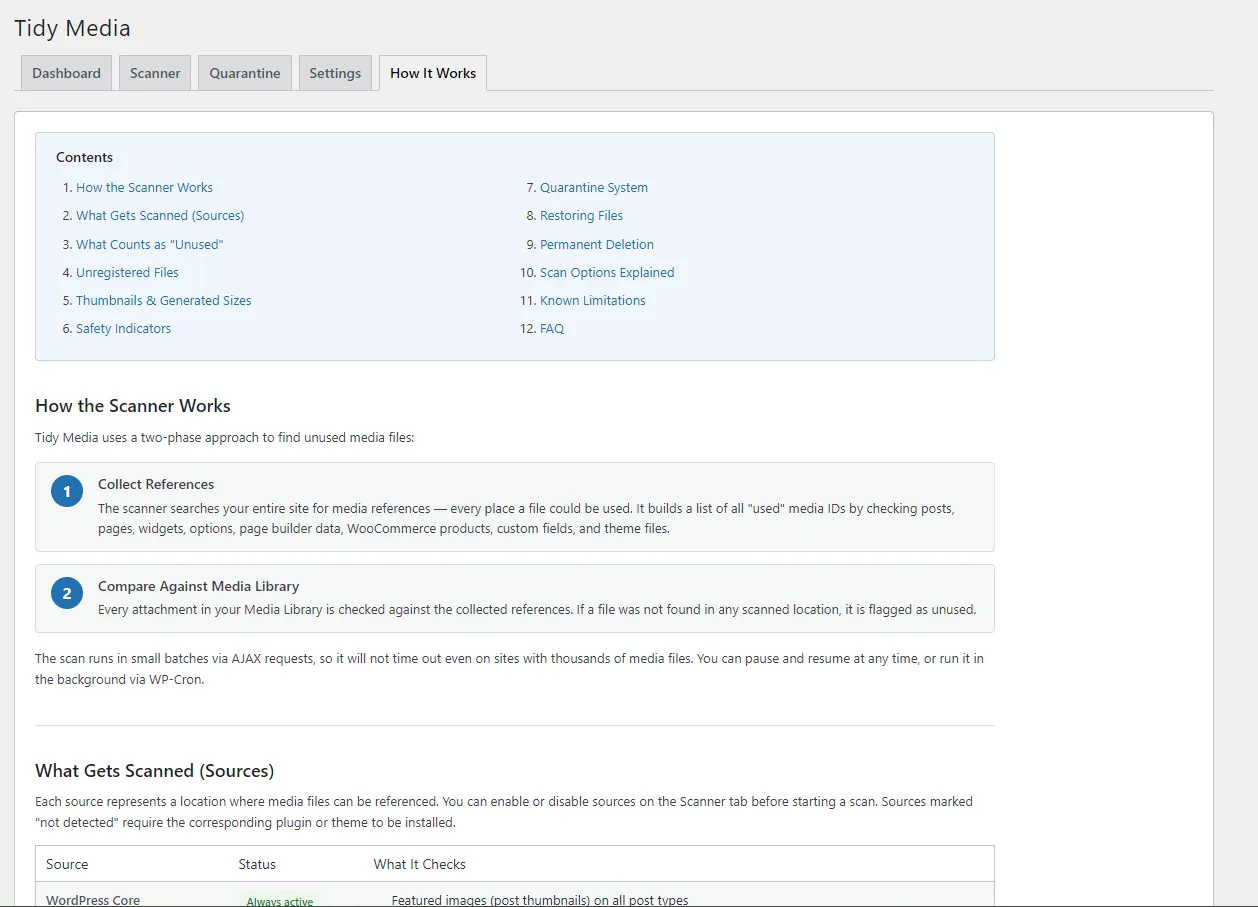
The scanner works in two phases. First it collects every media reference it can find across your site: post content, featured images, page builder data, WooCommerce products, custom fields, widgets, site options, comments, user profiles, terms, slider, form, SEO, mailing list, map and code snippet tables, theme files, must-use plugins and the plugins you choose. Then it compares every file in your Media Library against that list.
A file that was not found anywhere is marked Safe. A file found only in revisions, the trash or code is marked Review, so you check it before moving it.
Every result is marked Safe or Review, with the reason in plain words. Safe files can go to quarantine. Review files might still be used somewhere the scan cannot see, such as emails or other sites, and need an extra confirmation.
Files that must stay, such as files still in use, form uploads, customer files or your Protected media IDs, are not listed, and Tidy Media never moves them.
Themes and plugins sometimes show an image by its media ID, for example a logo in the header. When the ID of a media item appears in your theme, your must-use plugins or the plugins you chose in Settings, Tidy Media marks it “Used in code” and names the file and line in the reason.
A number in code is not always a media ID, so open that file and check. If the media item is used, add its ID to Protected media IDs in Settings and it is never offered again.
No. Tidy Media never deletes files directly from scan results. Files are first moved to quarantine, where they stay for the retention period you choose (30 days by default). Review files need an extra confirmation, and every permanent delete asks you to confirm it.
Files that must stay are never listed, and a quarantined file that is still requested is never deleted automatically.
When you quarantine a file, the file and all its image sizes are moved to a quarantine folder with a random name inside wp-content/uploads/ (the plugin’s How It Works tab shows its exact name). A metadata file saved alongside it records everything needed for a full restore. The folder has a random name and .htaccess rules that block web access on Apache. Nginx ignores .htaccess, so a Site Health check tests whether quarantined files can be opened from the web and shows the rule to add if they can.
Files stay in quarantine for the retention period you choose: 30 days by default, with choices of 7, 14, 30, 60, 90, 180 or 365 days, or Never to delete them by hand. After that they are cleaned up automatically. A media item moves to and from quarantine with all its files, or not at all.
As long as the file is still in quarantine, you can restore it with one click, or restore a whole batch. The file and all its thumbnails are moved back to their original location. If the WordPress attachment post was deleted while the file was in quarantine, a new one is created automatically with the original metadata.
Run “Check my pages” after a cleanup: it fetches your pages the way a visitor sees them and finds quarantined media they still show.
Compatibility
Tidy Media supports Elementor, Divi, Beaver Builder, WPBakery, Bricks, SiteOrigin Page Builder and Brizy, including Elementor 4 and Divi 5 layouts. The scanner detects images used in widgets, modules, backgrounds, templates and saved layouts. Page builders that are not installed appear greyed out in the scan sources list, so you can see what is supported.
Yes. Tidy Media detects images used in WooCommerce product galleries, variation images, category thumbnails, downloadable product files, attribute images, brand images and placeholder images. Product short descriptions count as use too. WooCommerce is optional; the plugin works on any WordPress site.
Yes. Tidy Media supports five custom field plugins: ACF (Advanced Custom Fields), Meta Box, Pods, JetEngine and Toolset Types. It scans image, file, gallery and media fields in post meta, term meta, user meta and ACF option pages, and walks repeaters, groups and flexible content layouts. Custom fields and options that hold media IDs count as use.
It reads your theme, your must-use plugins and the plugins you choose in Settings, looking for links to uploads and for media IDs. A media ID found in code marks the file “Used in code”, with the file and line. Theme files over 2 MB are not read.
Scanning details
Unregistered files exist in your wp-content/uploads/ folder but have no entry in the WordPress Media Library, so WordPress does not see them. Common sources are backup plugins (UpdraftPlus, BackWPup), image optimization backups (ShortPixel, Smush), cache files and files left behind by uninstalled plugins. Each file is tagged with its likely origin. Turn on “Scan for unregistered files” to find them.
Form uploads, customer files, shared files, plugin and theme folders and WooCommerce’s working folders are never offered. Executable files are only listed in an alert and never moved.
Thumbnails follow their original. If the original is used, all its thumbnails are treated as used too, and they are quarantined and restored together with it.
The optional “Skip WordPress-generated thumbnails” setting hides files whose names match a generated-size pattern from the unregistered-file results. A name match is only a guess, so verify before deleting.
Deep scan searches inside serialized data and meta fields for hidden references. Many plugins, page builders especially, store media references in serialized arrays that a basic scan would miss. It is recommended for sites with page builders or custom field plugins.
It depends on the size of your Media Library and the number of posts. A site with 1,000 media files typically takes 1 to 3 minutes; sites with 10,000 or more files may take 10 to 30 minutes. With the default Automatic setting, the batch size adjusts itself to your server: larger batches while it answers quickly, smaller ones when it is slow. You can pause and resume at any time.
No. The scan runs in small batches and monitors server resources (memory and execution time). It pauses automatically if resources are low and resumes after a brief cooldown. Your site stays fully operational during the scan.
Safety and limitations
The scanner cannot detect images referenced only in plugin code it does not read (it reads your theme, must-use plugins and the plugins you choose in Settings), external CSS or JavaScript files, images loaded via custom PHP or AJAX, or media used only in email templates. Files found only in code are marked Review or “Used in code”, so you can check them before deleting.
This is why quarantine exists: always quarantine first and check your site before deleting anything permanently.
No. The page check and the download check only request pages and files of your own site, and only when you click the button. The same is true of the quarantine protection test. No scan runs in the background. The only scheduled task is a daily WordPress cron job that removes quarantined files after their retention period, and nothing is sent anywhere else.
Quarantined files stay on disk in the quarantine folder (its name starts with tidy-media-quarantine- followed by random characters, inside wp-content/uploads/). They are not deleted when the plugin is deactivated.
If you uninstall (delete) the plugin with “Delete all data” turned on in Settings, quarantined files and all plugin data are permanently removed.
The plugin scans the current site only. On multisite installations, activate it per site and run scans on each site individually.
Price and alternatives
Yes. There is no Pro version and there are no upsells: every feature is included, from the seven page builders, WooCommerce and five custom field plugins to the quarantine, Check my pages and CSV export. It is GPL licensed, so you can use it on as many sites as you like.
Media Cleaner’s free version has a trash with restore and WooCommerce support. Its WordPress.org listing names page builder support (Elementor, Divi, Beaver Builder, WPBakery, Brizy and others), ACF and Meta Box, and the filesystem scan as Pro features (as of October 2026). Tidy Media includes all of these free, plus the Safe and Review classes with reasons, “Used in code”, quarantine history and Check my pages. See the comparison above.
Ready to clean your Media Library?
Install Tidy Media from WordPress.org, run a scan and see what is Safe to move. Nothing leaves quarantine until you say so.